
1. Why built-in Dual Messenger isn't enough once you pass 2 accounts
Samsung Dual Messenger and Xiaomi Dual Apps are convenient if you only ever need a second copy of one messaging app. The moment you manage a personal account, a work account, and a sales/shop account — or want to clone apps your phone brand doesn't whitelist — built-in dual features hit a hard wall.
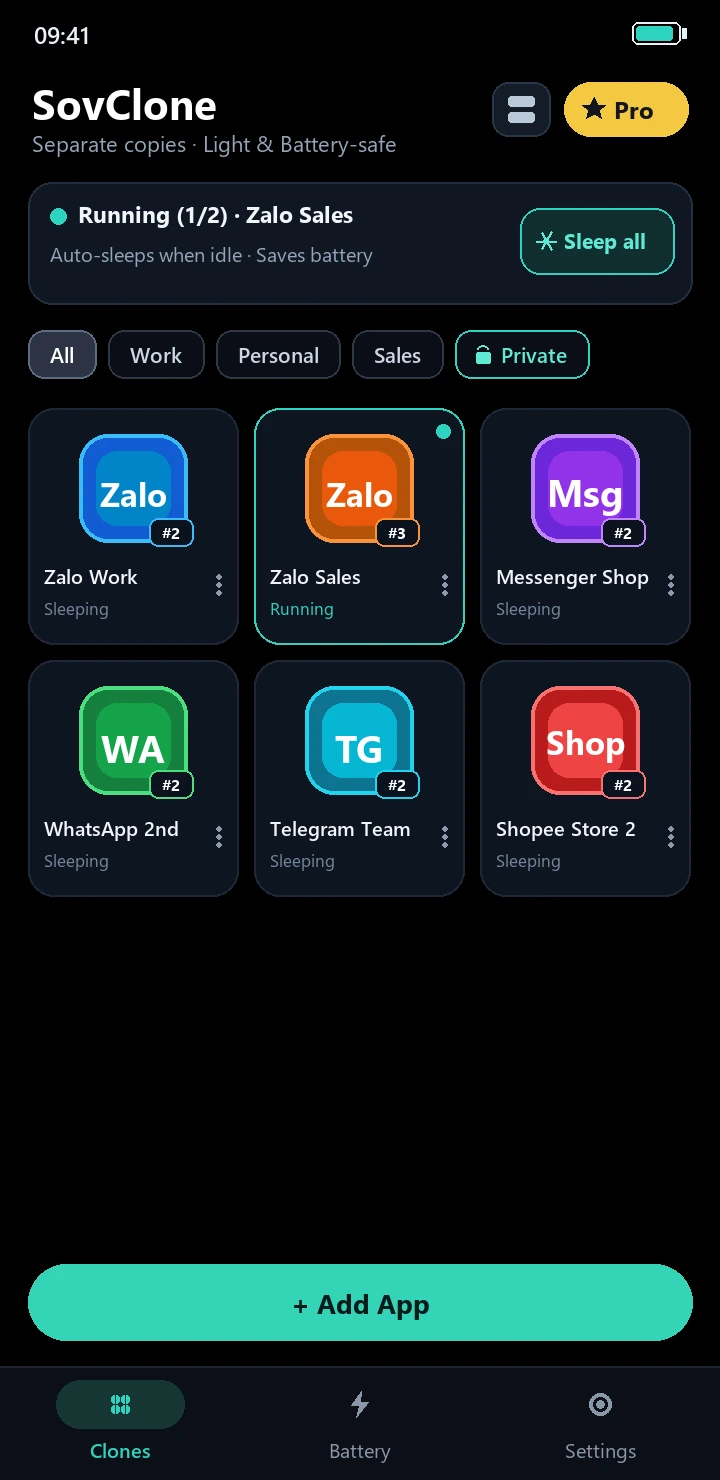
SovClone gives you up to 5 free isolated copies right on your phone, organized in a compact 3-column grid with role folders (Work, Personal, Sales, Private) so every account stays clear at a glance.
2. A simple color & naming rule so you never message the wrong person
The biggest risk of running multiple messaging accounts is replying to a customer from your personal chat — or texting family from your company account. Before signing in, assign a clear color and short role label to every copy:
- Blue frame (#2) — Office & Work team chats (place inside the Work folder).
- Orange frame (#3) — Online shop & customer support (pin to your main Home Screen).
- Green or Purple frame — Secondary WhatsApp, Telegram team groups, or warehouse accounts.
- Private folder (locked) — Personal or confidential accounts hidden behind PIN & Fingerprint.
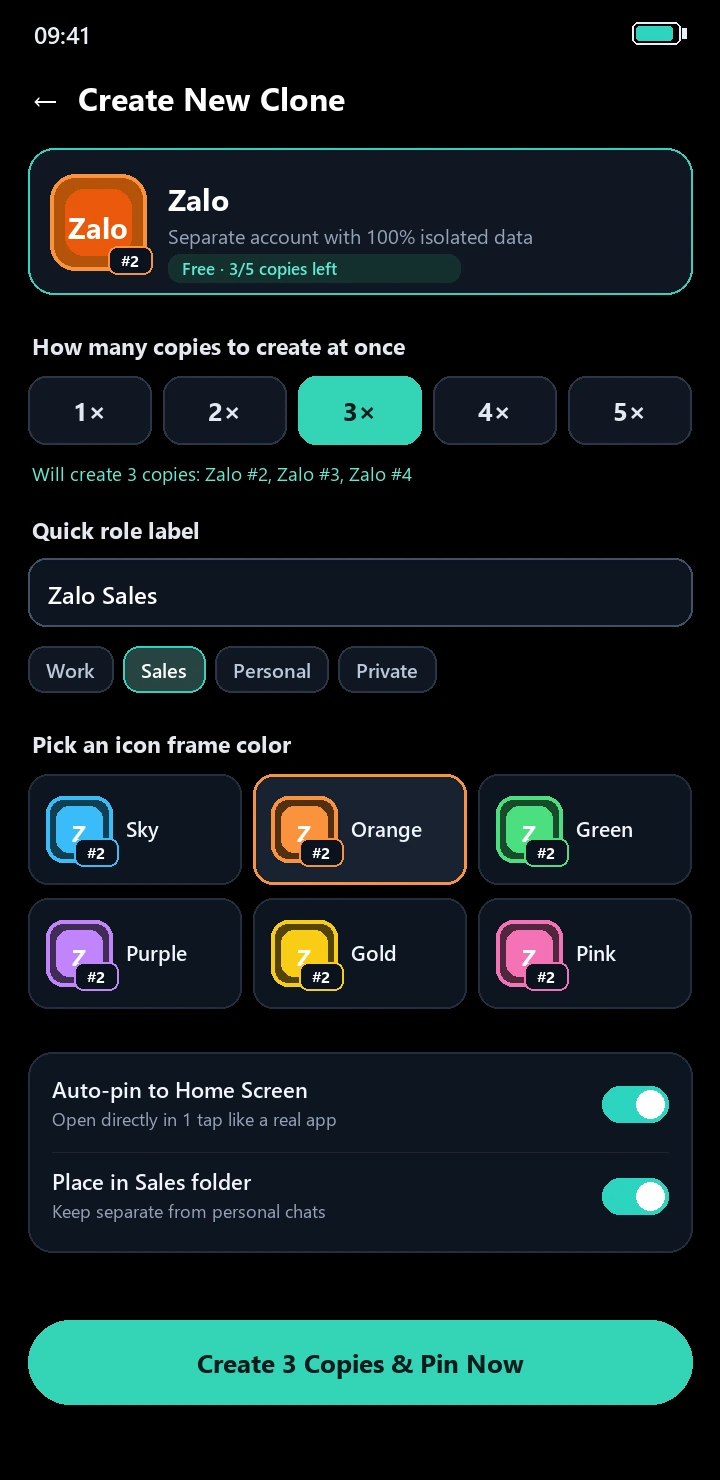
3. Open each copy directly from your Home Screen in 1 tap
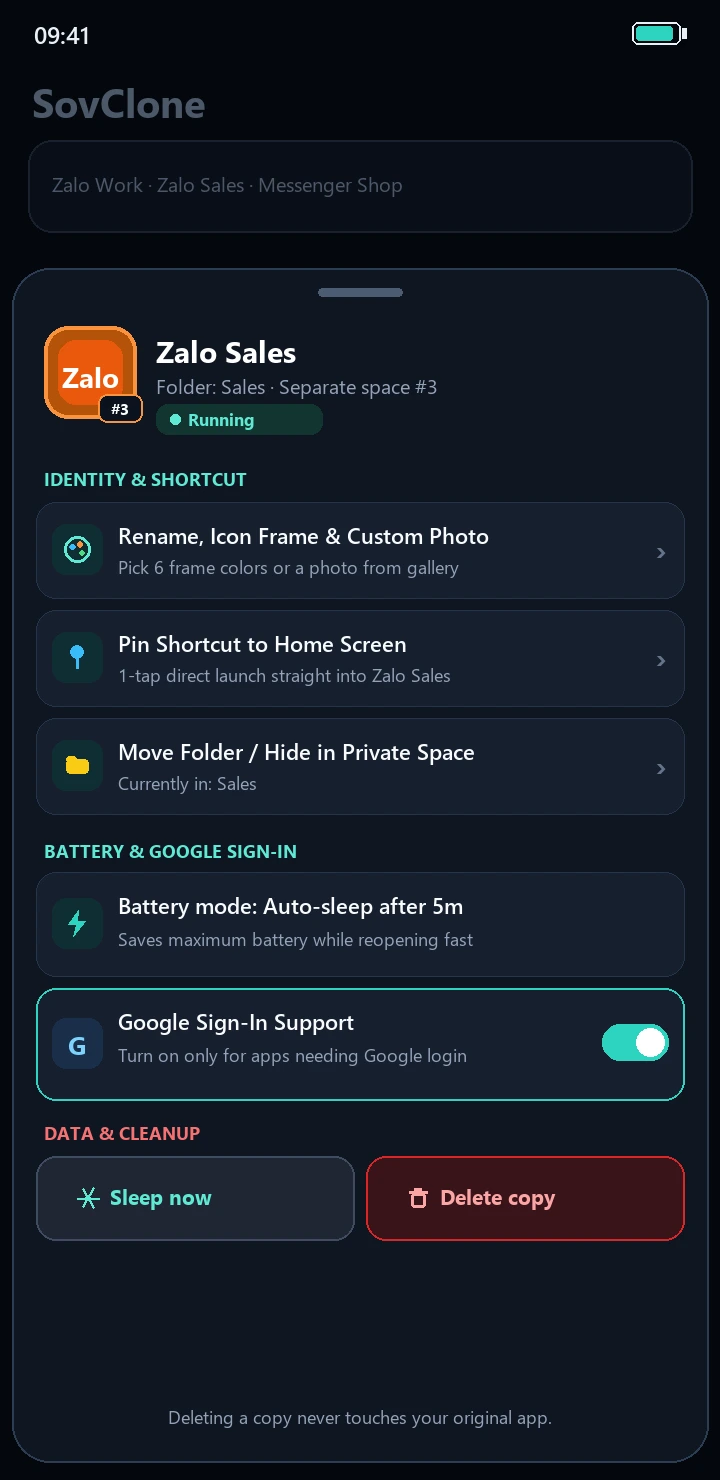
You don't need to open SovClone every time you check messages. Tap the 3-dot icon on any copy and select Pin Shortcut to Home Screen — or swap the icon with your own shop logo from your gallery. Tapping the pinned icon opens that exact account directly.
Frequently Asked Questions
Can I sign in to two different phone numbers on cloned Zalo or WhatsApp?
Yes. Each copy has its own completely isolated login and chat history, so you sign in with a separate phone number or account on every copy.
Does SovClone touch my existing Samsung Dual Messenger or original Zalo?
No. Your original app and any existing Samsung Dual Messenger account remain completely untouched.