
1. Batch cloning 1–5 copies in a single flow
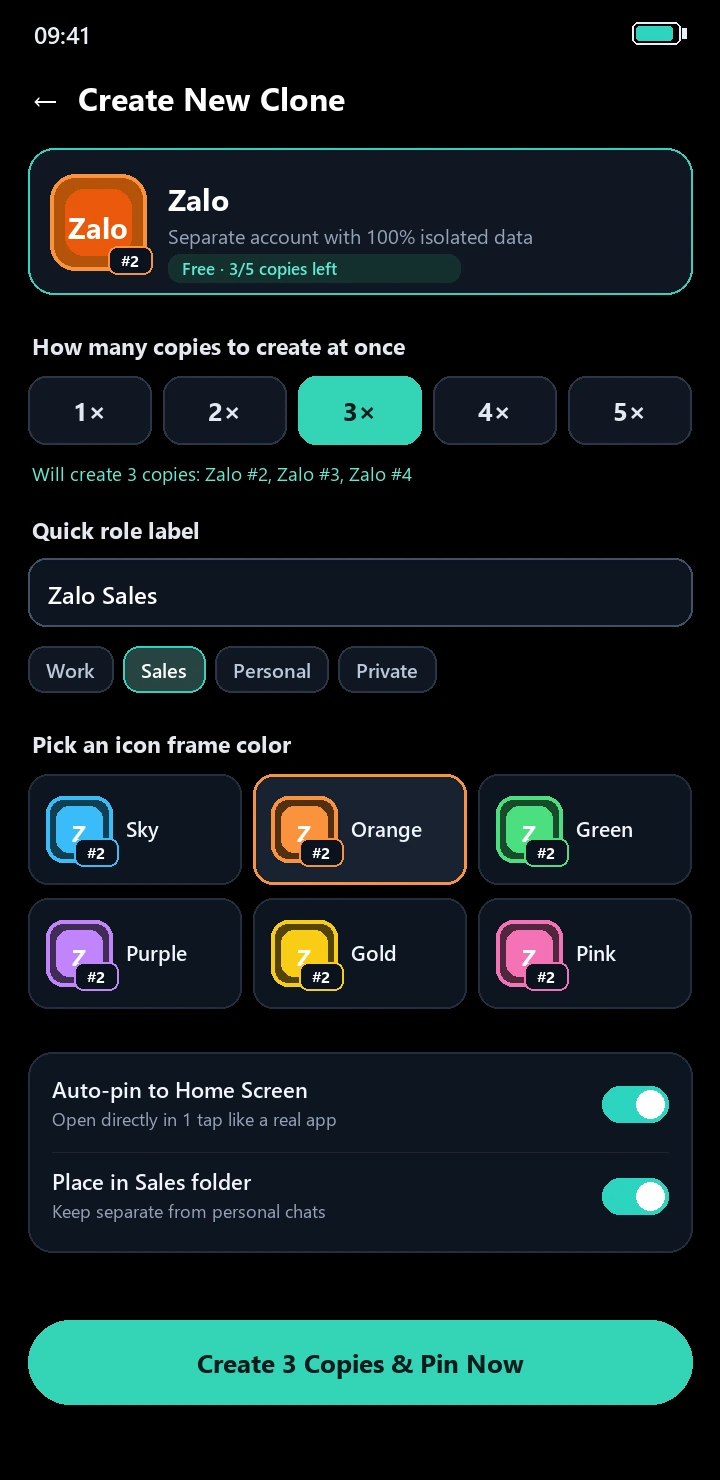
Instead of repeating the same setup screen over and over when setting up multiple store or team accounts, SovClone lets you choose 1×, 2×, 3×, 4×, or 5× right on the creation screen. Each copy is automatically numbered (#2, #3, #4...) and isolated from day one.
2. Customize icon frames, custom gallery photos & Google Sign-In
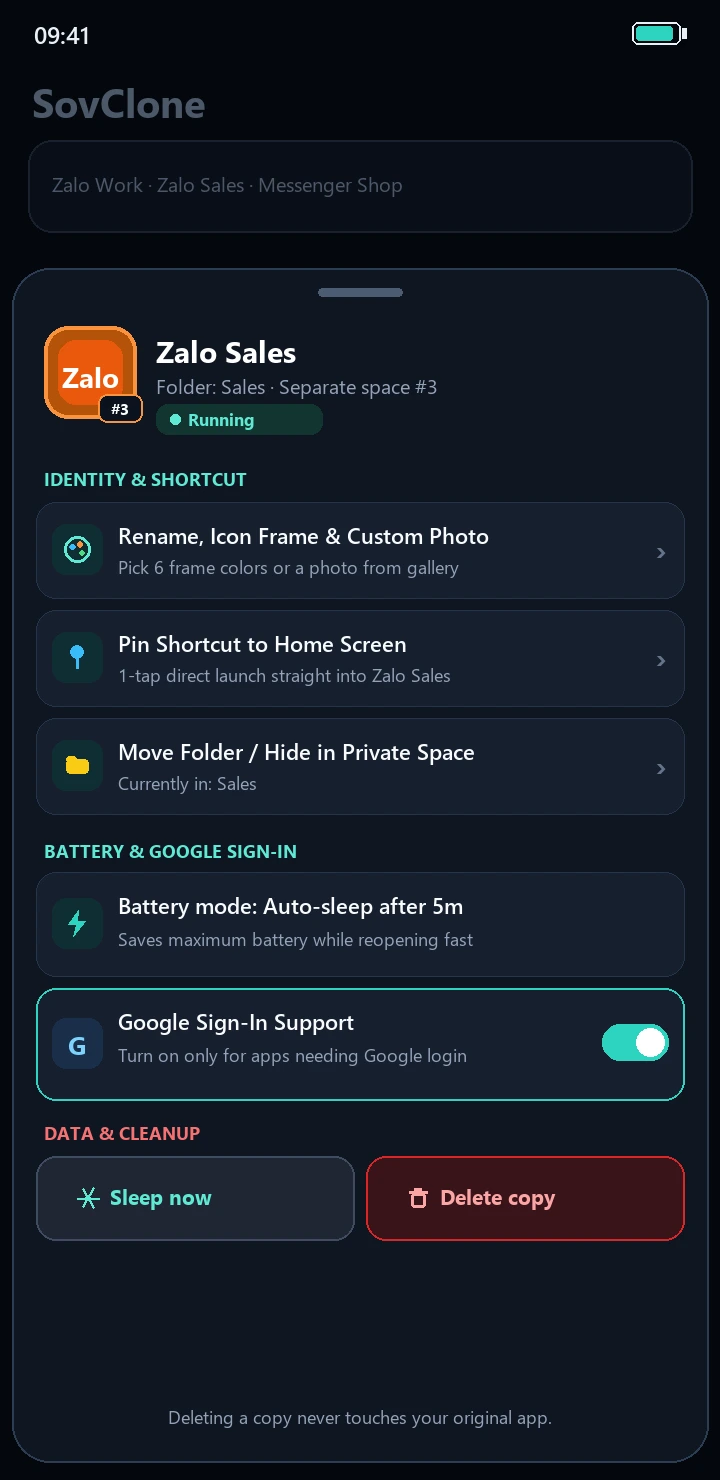
After cloning, open the 3-dot Manage sheet on any copy to fine-tune how it looks and behaves. You can pick a custom logo photo from your gallery, move the copy to another folder, or enable Google Sign-In specifically for apps that require a Google account (like Google Drive or certain games).
- Keep Google Sign-In OFF for regular chat apps so they stay extra light and fast.
- Tap 'Clear copy data' anytime to log out cleanly without deleting your shortcut.
3. Fixing missing Home Screen shortcuts on Xiaomi, Oppo & Samsung
Android gives each phone maker slightly different rules for pinning app icons onto the Home Screen. If tapping 'Pin Shortcut' doesn't drop an icon right away, check these quick steps:
- Xiaomi / Redmi / POCO (MIUI / HyperOS): Open SovClone Settings → Home Shortcut Guide → Other permissions → turn on 'Home screen shortcuts'.
- Oppo / Realme / OnePlus: Open App Info → Permissions → allow 'Create home screen shortcuts'.
- Samsung Galaxy: When the Samsung popup asks 'Add to Home screen?', tap Add (or drag the preview icon to your preferred page).
Frequently Asked Questions
Does cloning an app double the storage space on my phone?
No. SovClone reuses your installed app safely and only stores the separate login, cache, and chat files for each copy — saving hundreds of megabytes compared to duplicating full packages.