
1. Why ordinary app cloners drain your battery so fast
When you keep 4 or 5 cloned messengers and shopping apps awake at the same time, every single copy holds open network connections, refreshes feeds, and wakes your phone's processor even while it sits in your pocket.
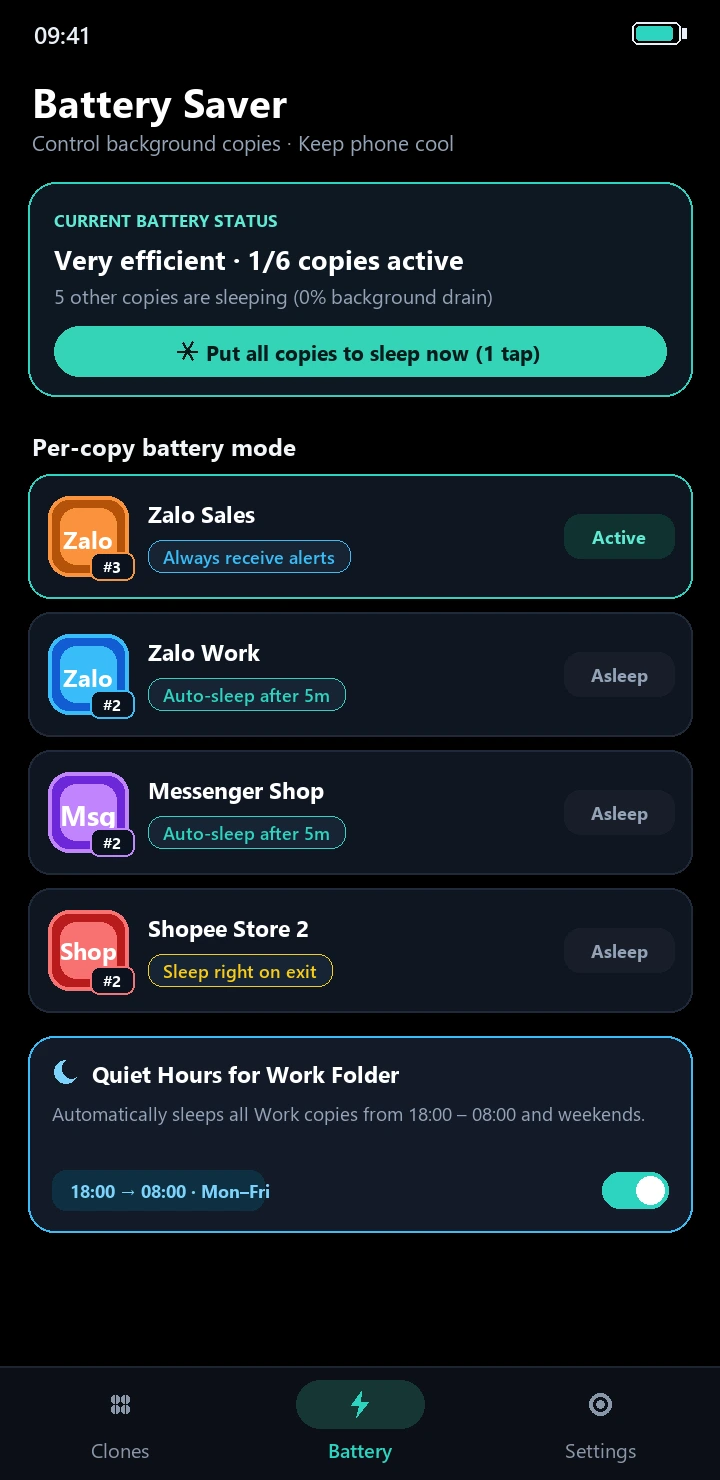
SovClone flips this around: sleeping copies use 0% background battery, and only the accounts you actually choose stay awake.
2. Choose the right Battery Mode for every account
Not every account needs instant push notifications 24/7. Matching each copy to one of SovClone's 3 modes dramatically cuts battery usage without missing important messages:
- Always Receive Alerts — Best for your 1 main Sales or Customer Support account that must ring immediately.
- Auto-Sleep after 5 minutes (Recommended default) — Great for secondary work chats; gives you plenty of time to copy OTPs or switch apps, then sleeps cleanly when you're done.
- Sleep Right on Exit — Ideal for shopping, warehouse, or occasional accounts you only check once or twice a day.
3. Switch to Pure Black AMOLED & turn on Work Quiet Hours
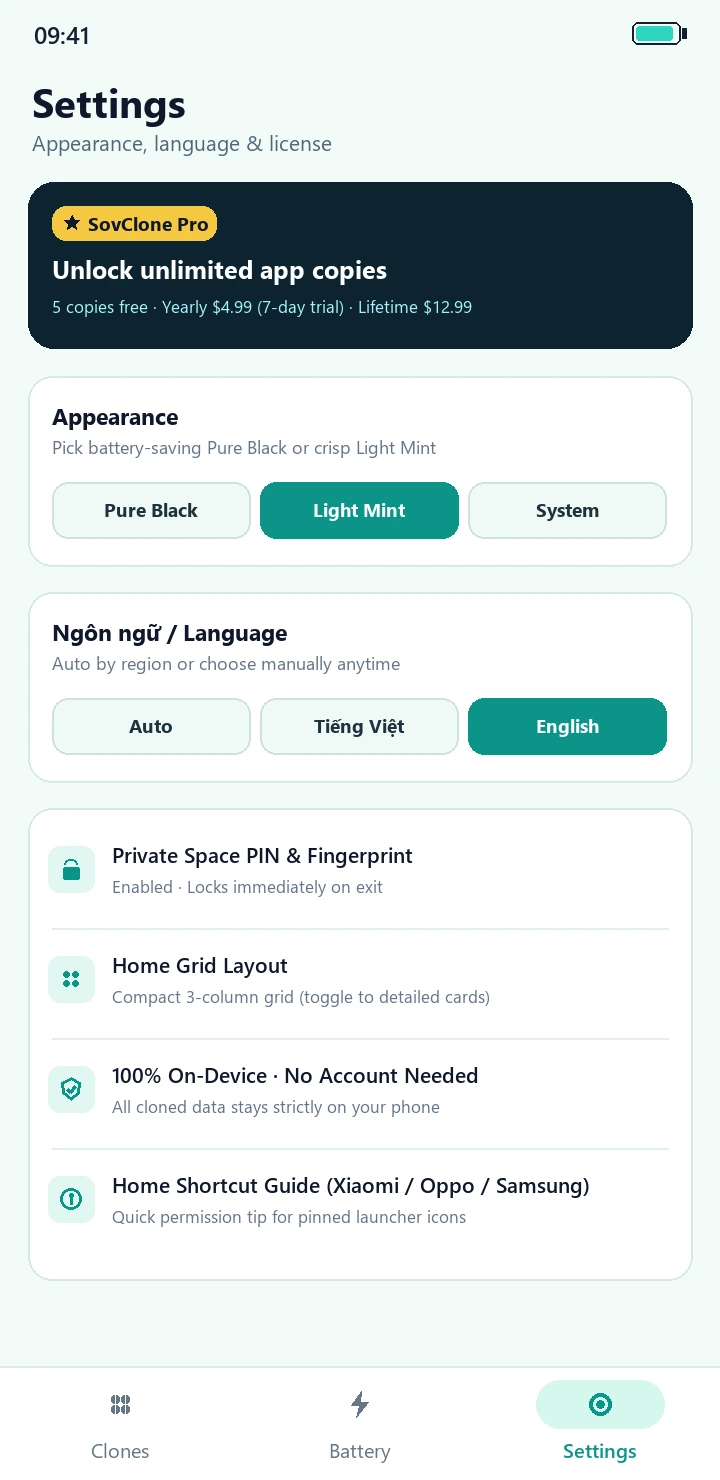
Enable Work Quiet Hours (for example, 18:00 to 08:00 and weekends) so every copy in your Work folder automatically rests outside office hours. Combined with SovClone's Pure Black AMOLED theme on OLED phones, you save battery both on screen and in the background.
Frequently Asked Questions
Does putting a copy to sleep log me out of my account?
No! Putting a copy to sleep only stops background activity to save battery. Your login, chats, and settings stay saved — the next time you tap the icon it opens right back into your account.